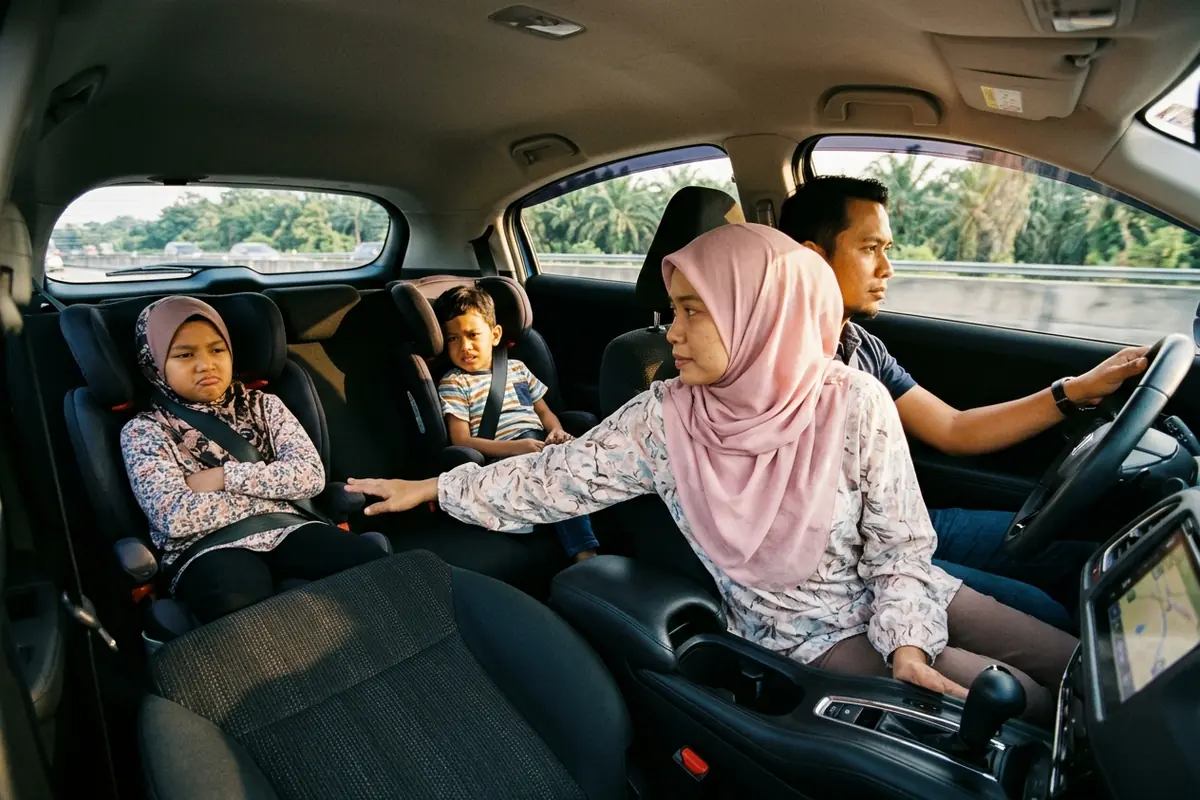
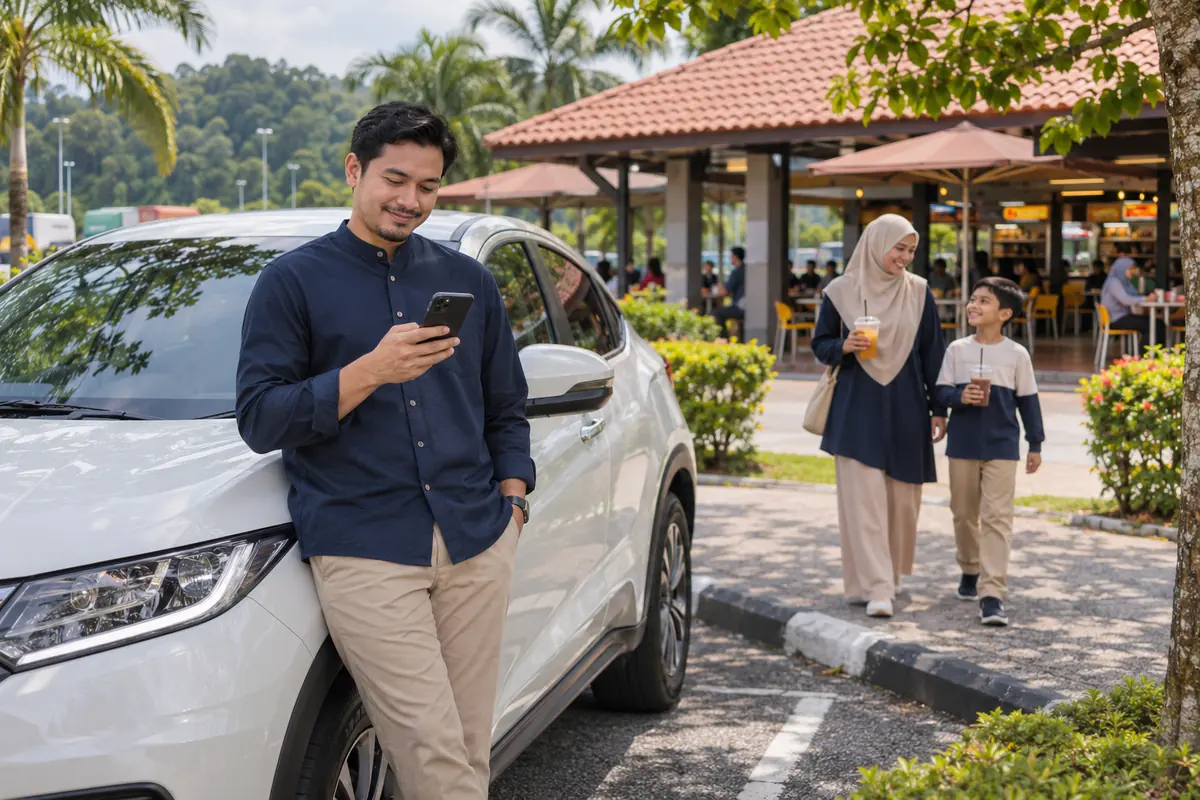
Kids bored in the back? Let them watch YouTube on the car screen.
Kokpit is an Android Auto app on your phone. Plug into the car and YouTube, TV and radio appear on the car screen for passengers. No player swap, no box, no touching the car's wiring.
Requires an Android 8.0 or newer phone and a car with Android Auto (wired or wireless). iPhone is not supported.
If you've been through this
- An hour past the toll, a voice from the back: "Dad, I'm bored…"
- A big car screen up front, but Android Auto won't allow YouTube.
- Buy a box or swap the player? Expensive and a hassle.
What you get, free
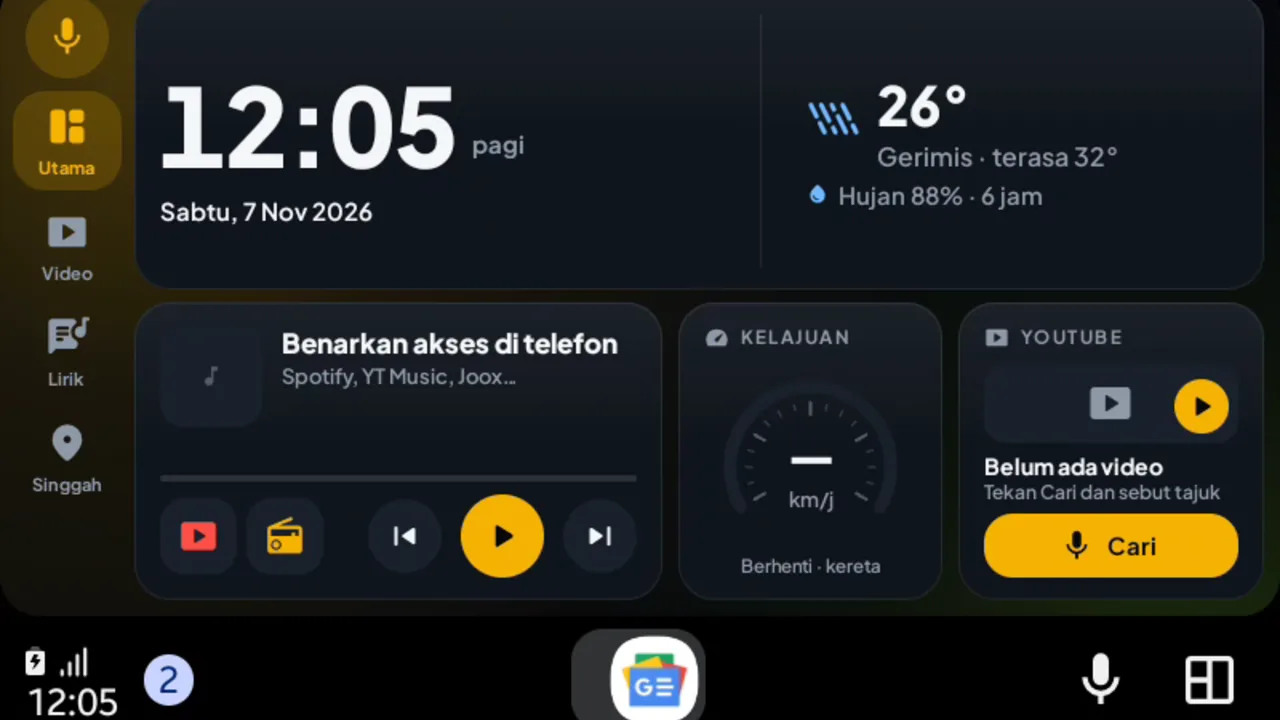
The Home screen (clock, weather, prayer times, music), YouTube while the car is stopped, Malaysian radio and TV, karaoke lyrics, Singgah, and Waze/Maps beside the video.
Check first
Does your car have Android Auto?
How to check: plug your phone into the car with a USB cable. The car screen should bring up Android Auto (or look for an Android Auto / Smartphone menu on the screen). If Android Auto does not appear at all, Kokpit cannot be shown on that screen.
Does the screen say "Connecting… Please allow install", or does the phone ask you to install the Perodua Smart Link app? That is the car's screen mirroring, not Android Auto. Kokpit cannot show through Smart Link.
Usually HAS Android Auto
- Perodua Alza AV 2022 and up
- Proton Saga MC3 (Premium/Executive)
- Honda HR-V 2022 and up
- Honda City 2023 and up
- Toyota Vios 2023 and up
- Proton X50 2025 (new model)
- Proton X70 MC1
- Perodua Traz
- Perodua Ativa 2025
- Mitsubishi Xforce
- Nissan Serena C26
Usually NO Android Auto
- Perodua Bezza
- Perodua Axia
- Perodua Myvi (older models)
- Perodua Ativa 2021–2022 (original screen)
This list is only a "usually" guide and depends on the model and variant — do not treat it as final. Please check your own car using the steps above.
Which phone brand do you have?
Samsung phones are tested in the car. Xiaomi, POCO and Redmi phones need the Shizuku way: the usual way is blocked; according to KingInstaller 2.6 the Shizuku way with two extra settings works, and Redmi Note 9 and Xiaomi 11T Pro users have got it working. A OnePlus 13 user also needed the Shizuku way, and it worked.
Other brands usually work, but we have not tested them all.
Download & install
In order: check your phone brand, install KingInstaller first, then download Kokpit.
Start here: what brand is your phone?
Xiaomi, POCO and Redmi phones need the Shizuku way.
These phones block the usual install method. According to KingInstaller 2.6, the Shizuku way works once two Developer options are on: Install via USB and USB debugging (Security settings). A Redmi Note 9 user (9 Nov 2026) and a Xiaomi 11T Pro user (10 Nov 2026) got it working this way. If there's a Samsung phone at home, that's easiest.
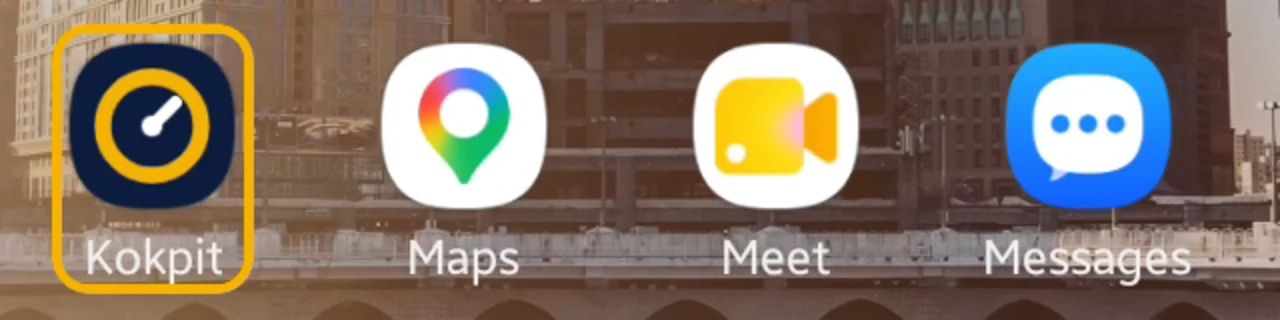
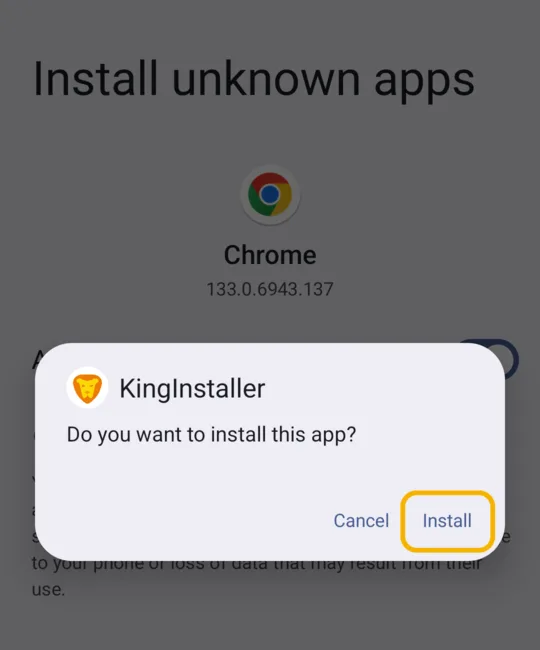
- Install KingInstaller (free, 9 MB). Download KingInstaller Open the file. If the phone asks, turn on "Allow from this source" for Chrome, then tap Install.
- Download Kokpit. Download Kokpit (APK, 35 MB)Important: do not tap Open on kokpit.apk. If Kokpit is installed straight from the file, it will not appear on the car screen. Leave the file in the Download folder and install it with KingInstaller.Then open KingInstaller. The first time only, turn on "All files access". Tap Select APK to install and pick the kokpit.apk file (in the Download folder).
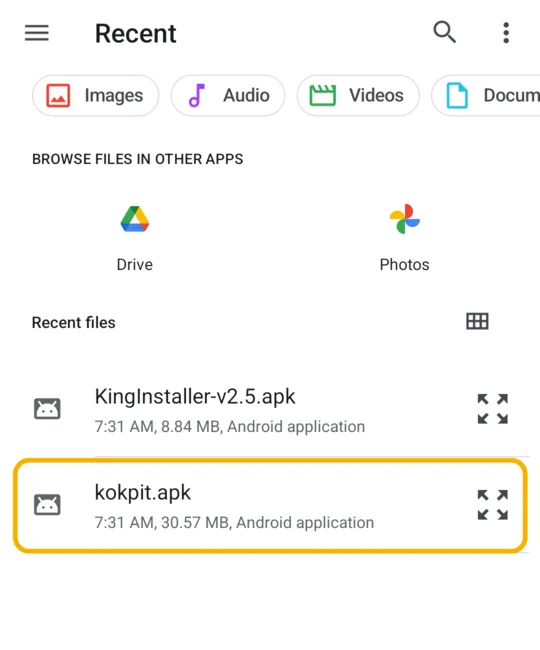
- Tap Install as king. If asked, turn on "Allow from this source" for KingInstaller. If "Complete action using" appears, pick Package installer (the download icon), not KingInstaller, and tap Just once. Then tap Install or Update. Samsung phones may say "Installing this app isn't recommended": tap Install anyway.
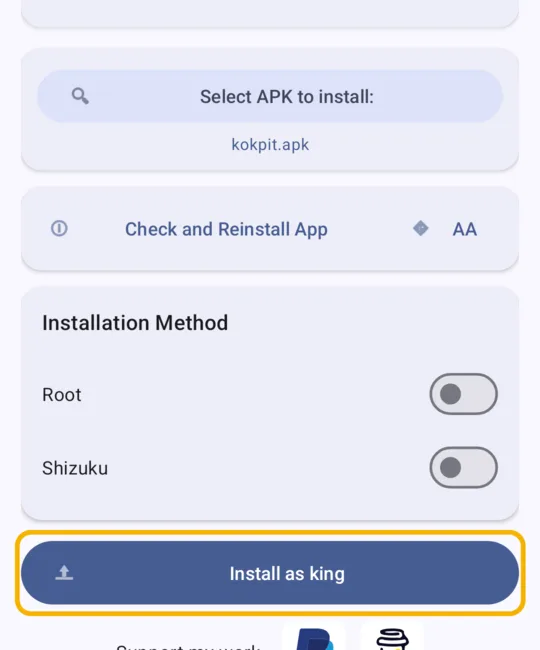
- If Google Play Protect appears, tap Scan app. When it says "This app looks safe", tap Install. No Scan app button? Tap More details › Install without scanning.
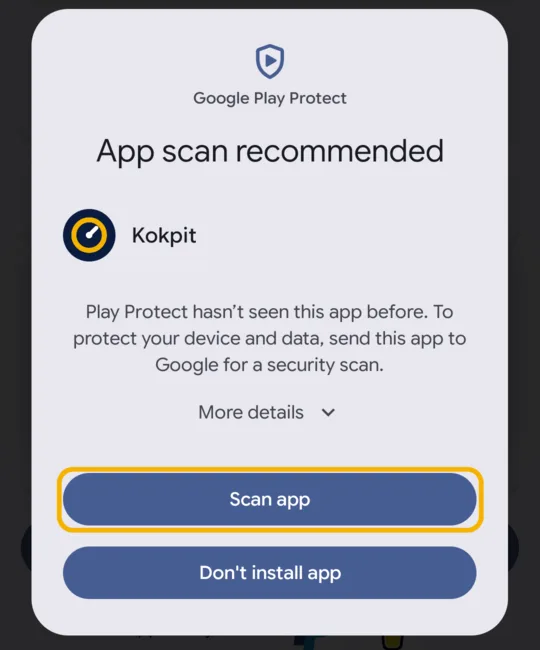
- Check first: in KingInstaller tap Check and Reinstall App and pick Kokpit. "This app should work in Android Auto" means done; plug the phone into the car and Kokpit appears in the Android Auto app list. If it says "This app might not be available in Android Auto", follow the Shizuku method below.
Installed, but Kokpit is not on the car screen?
If Android Auto opens but Kokpit is missing, Kokpit was installed straight from the file. No need to remove it, nothing is lost. Install KingInstaller (step 1), open it, pick kokpit.apk, tap Install as king. Then plug the phone into the car again. Used KingInstaller and it's still missing? Follow the Shizuku method.
Xiaomi, POCO or Redmi phone? The usual way is blocked; go straight to the Shizuku method (including two Xiaomi-only settings). OnePlus phone: a OnePlus 13 user reported the usual way failed and the Shizuku method worked (9 Nov 2026).
Shizuku method: when KingInstaller says "might not be available in Android Auto"
Some Android 16 phones (for example the Samsung S22) refuse the usual method. Shizuku gives KingInstaller the permission it needs. You only do this once; nothing in Kokpit is lost.
- Connect the phone to Wi-Fi. Open Settings › About phone › Software information, tap Build number 7 times until "Developer mode has been turned on".
- Xiaomi, POCO or Redmi only: in Developer options, also turn on Install via USB and USB debugging (Security settings). Xiaomi may ask you to sign in to a Mi account first.
- Install Shizuku (free). Download Shizuku
- Xiaomi, POCO or Redmi shows "Security risks detected" for Shizuku? The virus scan and counterfeit check pass; the warning is only because the file is not from GetApps. Tap Install.
- Open Shizuku. Under Start via Wireless debugging, tap Pairing and follow Shizuku's steps: turn on Wireless debugging in Developer options, tap "Pair device with pairing code", and type that code into Shizuku's notification. Then tap Start.
- Start fails with a long red error (for example CERTIFICATE_UNKNOWN) or "Please go through the pairing step first"? The pairing was not saved. In Wireless debugging, remove Shizuku from the paired devices, tap Pairing again and type the new code until the notification says "Pairing successful". Then tap Start.
- Shizuku shows a red "You need to take an extra step" box (common on OnePlus, Oppo, Realme)? In Developer options, turn on Disable system optimization (older versions: Disable permission monitoring), restart the phone, then Start Shizuku again.
- No kokpit.apk file yet? Download it first. Download Kokpit (APK, 35 MB) Do not tap Open; the file goes to the Download folder.
- Open KingInstaller, turn on the Shizuku switch and tap Allow all the time. Tap Select APK to install, open the Download folder and pick kokpit.apk. Tap Install as king, then Install or Update.
- Check again (Check and Reinstall App › Kokpit): "This app should work in Android Auto". Shizuku stops when the phone restarts; you only need it to install and update.
Tested on a Samsung S22 (Android 16), 8 Nov 2026. The Xiaomi step is per KingInstaller 2.6; a Redmi Note 9 user got it working, 9 Nov 2026. Stuck? WhatsApp us.
Stuck? WhatsApp us, we'll help you install. WhatsApp
Why KingInstaller? Android Auto only shows apps installed a certain way. KingInstaller installs Kokpit that way.
Samsung phones: if the Kokpit Cermin switch is greyed out and the phone says "App was denied access", open Settings > Apps > Kokpit > ⋮ (three dots, top right) > Allow restricted settings. Then turn on Kokpit Cermin under Accessibility > Installed apps.
Follow the Kokpit WhatsApp Channel — the list of cars we've tested, new versions and tips.
Frequently asked questions
What is Kokpit?
Kokpit is an Android Auto app for your Android phone. Plug it into a car with Android Auto and passengers can watch YouTube, Malaysian TV and radio, lyrics and see prayer times on the car screen, with Waze beside the video. No player swap, no box, no wiring in the car.
Do I need a hotspot or car internet?
No. Kokpit uses your phone's data, just like watching YouTube on your phone.
Will my car work?
If your car has Android Auto (wired or wireless), Kokpit is built for it. We test in a Honda HR-V 2023, and an Alza AV user runs it through a wireless Android Auto dongle (Xuda).
Does iPhone work?
No. Apple does not allow an app like this on CarPlay. Kokpit is for Android 8.0 and newer phones.
How long is it free?
The app and almost everything is free forever. Passenger Mode (the moving video picture for passengers) is free for 60 minutes per phone, then it is an in-app upgrade.
How do I update?
When a new version is out, Kokpit tells you in the app. Kokpit 0.2.16 and later: open Kokpit → Help & data → Update. Kokpit downloads it and opens KingInstaller with the file already picked; tap Install as king, then Update. Older versions: download Kokpit on this site and install it with KingInstaller like the first time. Your settings and Premium stay.
Follow the Kokpit WhatsApp Channel — the list of cars we've tested, new versions and tips.

Next trip, let the kids watch. You watch the road.
Download free now, install in 5 minutes.
Not in the car yet?
Send this link to your WhatsApp. Try it next time you're in the car.